

DGX B300 ConnectX-8 기반 800G 네트워크에서 소규모 클러스터를 스위치 없이 구성하는 방법
DGX B300의 8개의 ConnectX-8 800G 포트를 이용하면, 네트워크 장비 없이도 100 억원 정도 미만의 소규모 클러스터는 구성이 가능합니다.
이 글에서는 일반적인 Ethernet 구조에서 RoCE v2(RDMA over Converged Ethernet Version 2) 기반으로 GPU 클러스터를 구성하는 방법을 정리합니다.
1. B300 네트워크 구조
DGX B300은 다음과 같은 네트워크 구성을 가집니다.
•
ConnectX-8 × 8 (800G, OSFP)
•
포트당 내부적으로 400G × 2 인터페이스
•
총 16개의 400G 링크 사용 가능
이는 이전 H100, B200 대비하여 두배 증가한 수치입니다.
즉, 노드 간 direct 연결만으로도 충분한 대역폭을 확보할 수 있습니다.
ConnectX-8 포트는 GPU간의 RDMA 통신을 주로 담당하고.
BlueField-3 DPU 의 경우 ConnectX-7 규격으로 스토리지 및 일부 데이터 통신, 관리 제어를 담당합니다.
2. 왜 스위치를 쓰지 않는가
800G 네트워크를 표준 구성으로 올리면 비용이 크게 증가합니다.
•
800G 광모듈 금액은 개당 수백만원 표준 구성은 라인 하나당 3개의 모듈
•
즉 DGX 1대 기준 케이블 비용만 수천만~1억 수준
•
현시점 800G 스위치는 수십 주 이상의 발주 대기타임 존재
반면, DAC 케이블을 직결로 사용하면:
•
비용 약 1/10 수준
•
수 미터내 짧은 거리에서는 성능상 차이 없음
제조사의 레퍼런스 네트워크로 구조로 800G 를 구성하는것이 일반적으로 권장되지만 금액적인 부분과 네트워크 장비의 품귀, 수급 지연등 문제로 여러 기업에서도 고민이 많은 상황입니다.
ConnectX-8 규격의 광모듈(GBIC/Transceiver)은 현 시점 매우 고가이고 구성에 따라 다르지만 800G - 듀얼 400G 2포트 분할 구성하는 경우 하나의 케이블 세트가 천만원 이상의 금액입니다.
DGX B300의 경우 8포트가 있으니 단순 케이블 구매비가 1대당 1억원 수준에 도달하는 것입니다.
일반적인 싱글 모드 광 트랜시버의 경우 수 ~ 수십 km의 데이터 전송 거리를 가지며 데이터 센터 내부에서 단순한 단거리 연결에서는 다소 과한 사양을 가지고 있다고 볼 수 있습니다. 100G 정도 네트워크 구성에서는 멀티모드에서 MPO 케이블을 사용할경우 광모듈 비용을 많이 줄일 수 있지만 800G 구성에서는 일반적으로 사용되지 않습니다.
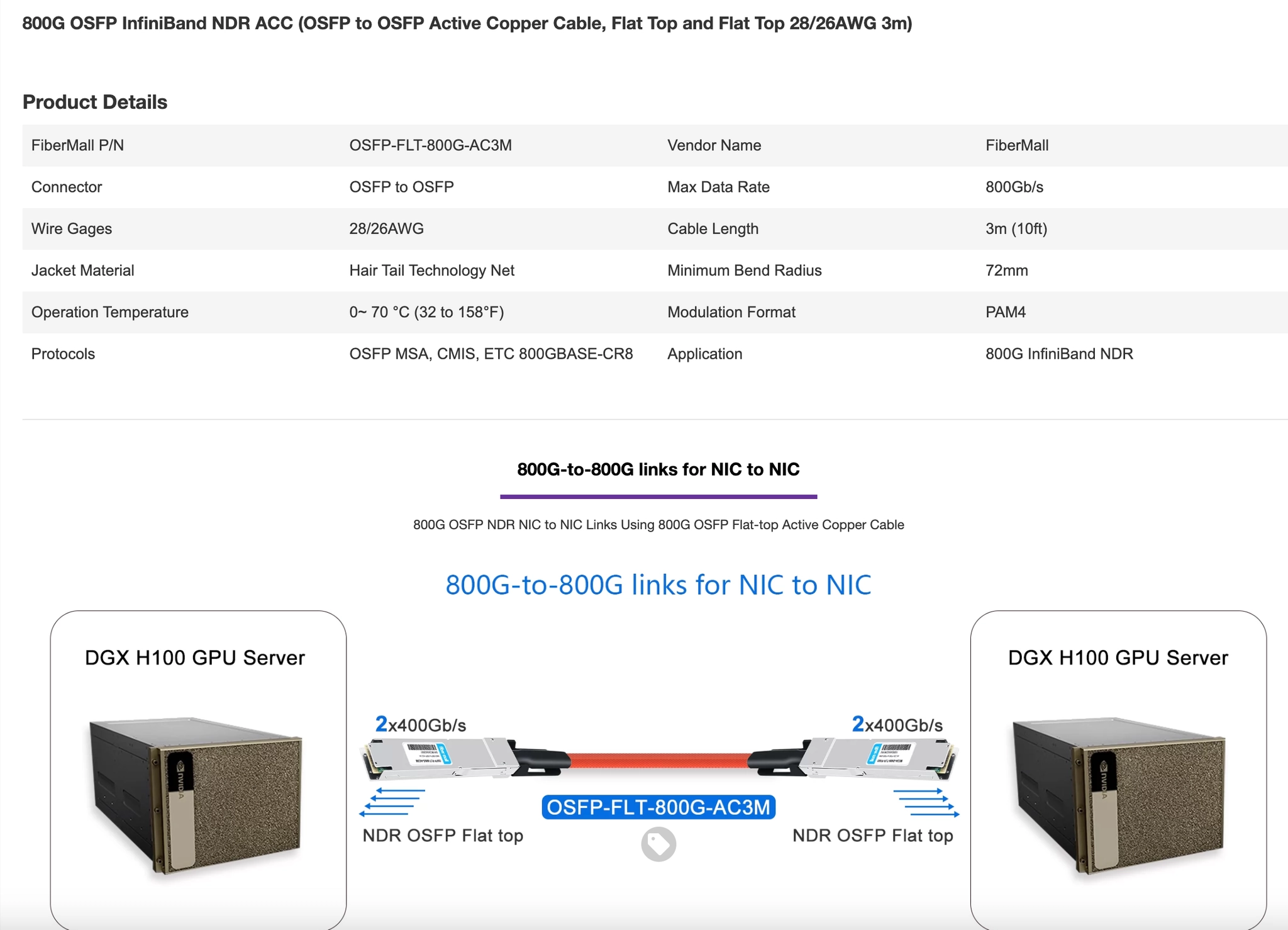
https://www.fibermall.com/sale-460634-800g-osfp-acc-3m-flt.htm
본 내용에서 다루는 DGX B300의 ConnectX-8 포트는 이더넷 모드를 지원하기 때문에 표준적인 800G OSFP 규격의 비교적 저렴한 DAC 케이블을 사용할 수 있습니다.
또한 DAC 케이블은 광모듈이 아닌 구리 기반의 연결이기 때문에 모듈의 전력소모량이나 발열이 충분히 작으면서 도입 금액도 광모듈 대비 1/10 ~ 1/20 정도의 금액 입니다.
실제 위 테스트한 샘플 케이블은 제조사에서는 IB NDR 전용 DAC로 판매하고 있지만 실제로 DGX B300 장비의 포트를 이더넷 모드로 전환하고 실제 링크 정보를 확인해보면 해당 케이블을 표준 규격의 Ethernet_Consortium_LL_50G_RS_FEC_PLR -(272,257+1) FEC로 인식하는것을 알 수 있습니다.
즉 Ethernet 모드에서 해당 케이블을 사용할 수 있습니다.
root@b300-001:~# mlxlink -d /dev/mst/mt4131_pciconf0
Operational Info
State : Active
Physical state : LinkUp
Speed : IB-NDR Width : 4x
FEC : Ethernet_Consortium_LL_50G_RS_FEC_PLR -(272,257+1)
Loopback Mode : No Loopback
Auto Negotiation : ON
3. 기본 구성 전략
기본적인 구성은 단순합니다.
1.
IB(InfiniBand) → Ethernet 모드 전환
2.
노드 간 직접 연결 (full mesh)
3.
/30 subnet 단위 IP 구성
4.
RoCE v2 기반 RDMA 사용
필요한 포트들을 확인하여 IB → Ethernet 으로 전환합니다.
mlxconfig -y -d /dev/mst/mt4131_pciconf0 set LINK_TYPE_P1=2 LINK_TYPE_P2=2
mlxconfig -y -d /dev/mst/mt4131_pciconf1 set LINK_TYPE_P1=2 LINK_TYPE_P2=2
mlxconfig -y -d /dev/mst/mt4131_pciconf2 set LINK_TYPE_P1=2 LINK_TYPE_P2=2
mlxconfig -y -d /dev/mst/mt4131_pciconf3 set LINK_TYPE_P1=2 LINK_TYPE_P2=2
mlxconfig -y -d /dev/mst/mt4131_pciconf4 set LINK_TYPE_P1=2 LINK_TYPE_P2=2
mlxconfig -y -d /dev/mst/mt4131_pciconf5 set LINK_TYPE_P1=2 LINK_TYPE_P2=2
mlxconfig -y -d /dev/mst/mt4131_pciconf6 set LINK_TYPE_P1=2 LINK_TYPE_P2=2
mlxconfig -y -d /dev/mst/mt4131_pciconf7 set LINK_TYPE_P1=2 LINK_TYPE_P2=2
Bash
복사
NVIDIA에서 제공하는 기본 데이터 시트를 참고하면 nvswitch 구조와 GPU 간 통신에 사용되는 장치명을 알 수 있습니다. LINK_TYPE_P1=2 는 이더넷 모드를 뜻하며 ConnectX-8 포트의 경우 하나의 IB 장치 포트가 두개의 이더넷으로 인터페이스로 나눠서 인식됩니다.
다음과 같은 명령어를 통해서 ConnectX-8 포트의 정보를 확인합니다.
mst status -v
BlueField3(rev:1) /dev/mst/mt41692_pciconf1.1 cc:00.1 mlx5_19 net-ibp204s0f1 1
BlueField3(rev:1) /dev/mst/mt41692_pciconf1 cc:00.0 mlx5_18 net-ibp204s0f0 1
BlueField3(rev:1) /dev/mst/mt41692_pciconf0.1 53:00.1 mlx5_9 net-ibp83s0f1 0
BlueField3(rev:1) /dev/mst/mt41692_pciconf0 53:00.0 mlx5_8 net-ibp83s0f0 0
ConnectX8(rev:0) /dev/mst/mt4131_pciconf7.1 ed:00.1 mlx5_23 net-enp237s0f1np1 1
ConnectX8(rev:0) /dev/mst/mt4131_pciconf7 ed:00.0 mlx5_22 net-eno6np0 1
ConnectX8(rev:0) /dev/mst/mt4131_pciconf6.1 dc:00.1 mlx5_21 net-enp220s0f1np1 1
ConnectX8(rev:0) /dev/mst/mt4131_pciconf6 dc:00.0 mlx5_20 net-eno8np0 1
ConnectX8(rev:0) /dev/mst/mt4131_pciconf5.1 b9:00.1 mlx5_17 net-enp185s0f1np1 1
ConnectX8(rev:0) /dev/mst/mt4131_pciconf5 b9:00.0 mlx5_16 net-eno9np0 1
ConnectX8(rev:0) /dev/mst/mt4131_pciconf4.1 97:00.1 mlx5_15 net-enp151s0f1np1 1
ConnectX8(rev:0) /dev/mst/mt4131_pciconf4 97:00.0 mlx5_14 net-eno7np0 1
ConnectX8(rev:0) /dev/mst/mt4131_pciconf3.1 70:00.1 mlx5_13 net-enp112s0f1np1 0
ConnectX8(rev:0) /dev/mst/mt4131_pciconf3 70:00.0 mlx5_12 net-eno11np0 0
ConnectX8(rev:0) /dev/mst/mt4131_pciconf2.1 5f:00.1 mlx5_11 net-enp95s0f1np1 0
ConnectX8(rev:0) /dev/mst/mt4131_pciconf2 5f:00.0 mlx5_10 net-eno13np0 0
ConnectX8(rev:0) /dev/mst/mt4131_pciconf1.1 39:00.1 mlx5_7 net-enp57s0f1np1 0
ConnectX8(rev:0) /dev/mst/mt4131_pciconf1 39:00.0 mlx5_6 net-eno12np0 0
ConnectX8(rev:0) /dev/mst/mt4131_pciconf0.1 17:00.1 mlx5_1 net-enp23s0f1np1 0
ConnectX8(rev:0) /dev/mst/mt4131_pciconf0 17:00.0 mlx5_0 net-eno10np0 0
ConnectX7(rev:0) /dev/mst/mt4129_pciconf0.3 27:00.3 mlx5_5 net-ibs301f3 0
ConnectX7(rev:0) /dev/mst/mt4129_pciconf0.2 27:00.2 mlx5_4 net-ibs301f2 0
ConnectX7(rev:0) /dev/mst/mt4129_pciconf0.1 27:00.1 mlx5_3 net-ibs301f1 0
ConnectX7(rev:0) /dev/mst/mt4129_pciconf0 27:00.0 mlx5_2 net-ibo4 0
Bash
복사
현재 우리가 타겟하는 ConnectX-8 8개의 포트는 각각 내부적으로 두개의 400G Ethernet 포트로 인식됩니다.
/dev/mst/mt4131_pciconf0
/dev/mst/mt4131_pciconf0.1
…
/dev/mst/mt4131_pciconf7
/dev/mst/mt4131_pciconf7.1
Python
복사
위와 같은 형태의 네이밍 규칙으로 총 16개가 존재하는것을 알 수 있습니다.
물리적인 포트위치와 다를수 있기 때문에 직접 케이블을 장착, 탈착 하며 하나씩 확인하면 다음과 같습니다.
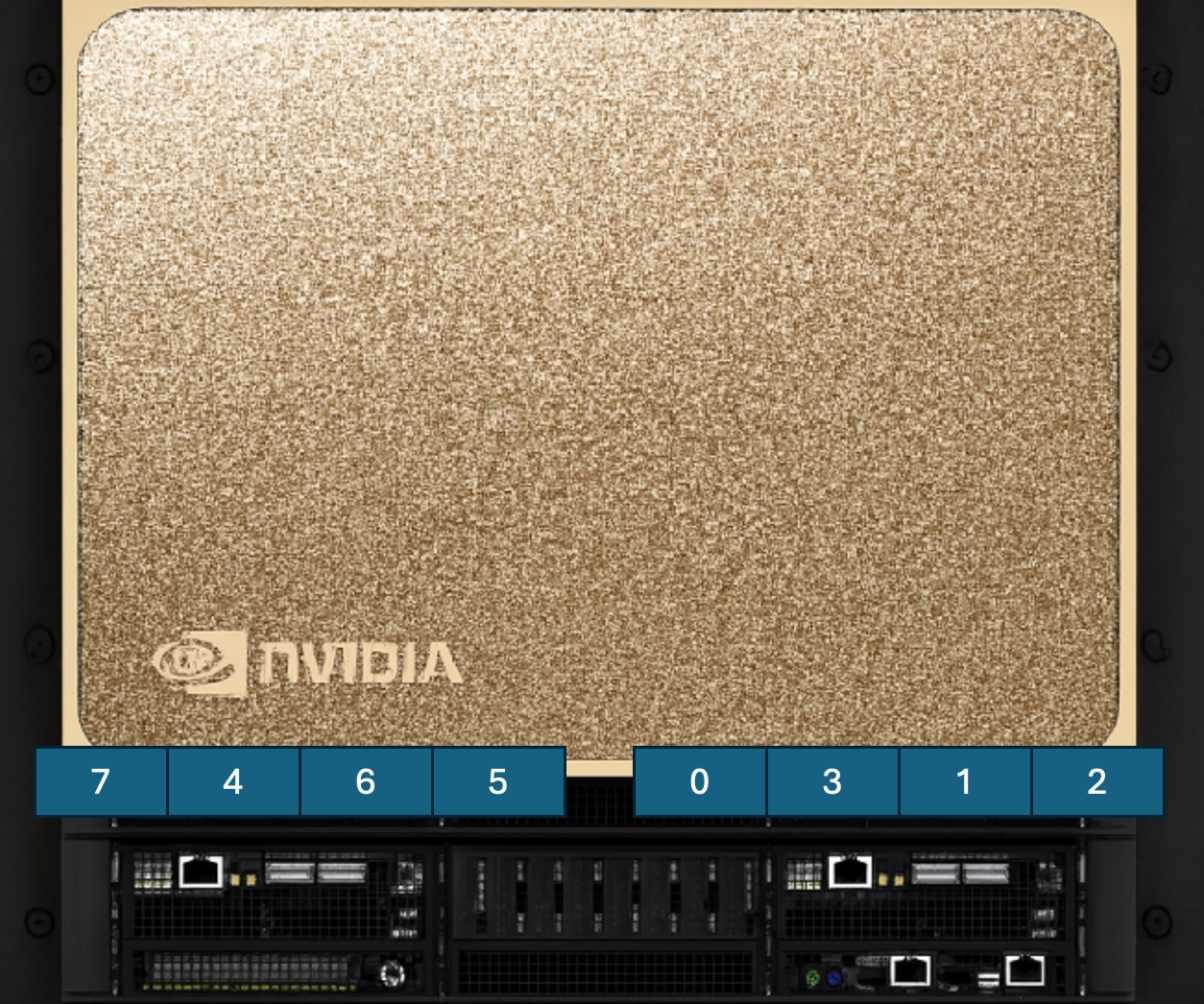
편의상 물리적으로 외부에서 보이는 순서를 왼쪽부터 순서대로 번호를 가정하면 하면
mst 명령어에서 장치의 이름에 적힌 숫자와 물리적인 포트 위치에서 확인되는 번호는
1 2 3 4 5 6 7 8
7 4 6 5 0 3 1 2
순서쌍으로 연결이 되는것을 알 수 있습니다. 또한 하나의 포트는 두개의 이더넷 인터페이스로 나뉘어져 있기 때문에 다음과 같은 연결맵을 얻을 수 있습니다.
DEFAULT_CARD_IFACES = {
0: ("eno10np0", "enp23s0f1np1"), # pciconf0
1: ("eno12np0", "enp57s0f1np1"), # pciconf1
2: ("eno13np0", "enp95s0f1np1"), # pciconf2
3: ("eno11np0", "enp112s0f1np1"), # pciconf3
4: ("eno7np0", "enp151s0f1np1"), # pciconf4
5: ("eno9np0", "enp185s0f1np1"), # pciconf5
6: ("eno8np0", "enp220s0f1np1"), # pciconf6
7: ("eno6np0", "enp237s0f1np1"), # pciconf7
}
Bash
복사
즉, 물리 포트 1개 = 논리 인터페이스 2개입니다.
IP 설계
네트워크 장비가 없기 때문에 직접 케이블과 IP 등 세팅을 수작업으로 구성해야 합니다.
기본 규칙:
•
링크 단위로 /30 subnet 사용
•
서버 번호 기반 네이밍
•
작은 번호 → 송신
10.112.1.0/30 같은 서브넷을 가정합니다.
10.1[서버1][서버2].[연결의숫자].[케이블양끝구분]
위와같은 간단한 규칙을 정할경우 분산 학습시 디버깅이 쉬워지는 장점이 있습니다.
예를들면
10.112.1.1 은 1번과 2번 서버의 1번째 송신부 연결입니다.
10.112.1.2 은 1번과 2번 서버의 1번째 수신부 연결입니다.
10.123.3.1 은 2번과 3번 서버의 3번째 송신부 연결입니다.
10.123.3.2 은 2번과 3번 서버의 3번째 수신부 연결입니다.
10.114.4.1 은 1번과 4번 서버의 4번째 송신부 연결입니다.
10.114.4.2 은 1번과 4번 서버의 4번째 수신부 연결입니다.
인터페이스 설정
link up
ip link set eno6np0 up mtu 9000
..
Plain Text
복사
기존 IP 제거
ip addr flush dev eno6np0
..
Plain Text
복사
IP 할당
ip addr add 10.1.1.1/30 dev eno6np0
..
Plain Text
복사
아래는 git에 포함된 네트워크 스크립트를 이용하여 자동으로 생성한 명령어 입니다.
구성되는 각 서버마다 모두 다른 세팅값이 필요함으로 원격 혹은 직접 콘솔에서 아래 명령어를 입력하여 네트워크 구성을 설정합니다.
# 예시 b300_netplan.py 실행결과
# 케이블 번호 → card idx → (np0, np1):
# 케이블1: card7 eno6np0 / enp237s0f1np1
# 케이블2: card4 eno7np0 / enp151s0f1np1
....
## ===== server1 =====
# --- link up ---
ip link set eno6np0 up mtu 9000
ip link set enp237s0f1np1 up mtu 9000
...
ip link set eno9np0 up mtu 9000
ip link set enp185s0f1np1 up mtu 9000
# --- flush ---
ip addr flush dev eno6np0
...
ip addr flush dev enp185s0f1np1
# --- addr add ---
ip addr add 10.1.1.1/30 dev eno6np0
...
ip addr add 10.1.8.1/30 dev enp185s0f1np1
## ===== server2 =====
...
Python
복사
이제 Slurm 등 적절한 클러스터 매니저 시스템을 통해서 네트워크 장비 없이도
2~8 노드 정도의 소규모 클러스터에서 훈련을 시작할 수 있습니다.
4. NCCL 동작 문제
기본 NCCL은 집합 통신은 다음과 같은 경우를 기본으로 가정합니다.
•
모든 노드가 동일 subnet에 존재
•
local GID 기준 인터페이스 선택
하지만 switchless 구조에서는:
•
노드 쌍마다 서로 다른 subnet 사용
•
잘못된 GID 선택 → QP 생성 실패
즉 단순히 케이블을 통해서 각 포트를 직결할 경우 연결의 경우 2대 이상의 노드에서는 NCCL (NVIDIA Collective Communications Library) 을 통한 분산 학습 및 추론이 기본적으로는 불가능 합니다.
하지만 다음과 같은 패치 코드를 통해서 NCCL 이 멀티 서브넷을 사용하여 통신 하도록 수정 할 수 있습니다.
예제의 베이스 이미지는 coreweave 의 nccl-tests 이미지를 기반으로 합니다.
#요약 NCCL Switchless Patch for B300
#NCCL v2.30.3-1용 Switchless (Back-to-Back) 직결 네트워크 패치입니다.
Switchless 토폴로지에서는 각 노드 쌍이 독립된 /30 서브넷으로 직접 연결됩니다. 기존 NCCL은 로컬 GID만 보고 선택하기 때문에, remote peer와 다른 서브넷에 있는 GID를 선택하면 QP(Queue Pair) 설정이 실패합니다.
NCCL_IB_SWITCHLESS=1 환경변수를 설정하면, NCCL이 remote peer의 GID에서 IPv4 주소를 추출하여 동일 서브넷에 있는 local GID를 찾습니다.
#핵심 변경
ncclIbGetGidIndex()에 remoteGid 파라미터 추가 (optional, 기본값 NULL)
ncclIbGetGidIndexForPeer(): remote GID의 서브넷과 매칭되는 local GID 인덱스 검색
Sender/Receiver 양쪽 모두 peer-aware GID 재선택
Python
복사
간단한 원리는 다음과 같습니다.
•
remote GID → subnet 추출
•
동일 subnet의 local GID 선택
이 방식으로 multi-subnet, 케이블 직결 환경에서도 정상 동작합니다.
5. 실제 예제 테스트
위 예시 스크립트 각각 2라인 400개의 400G연결을 하기위해서 12개의 DAC 케이블을 이용하면
각각 1600G의 full mesh로 세팅 가능 합니다.
위와 같은 NCCL의 커스텀 빌드에서 4~8대(32~64장) 수준의 B300 장비를 스위치없는 네트워크 매시 연결로
nccl_all_reduce 작업기준 4000Gbps ~ 6000Gbps 수준의 네트워크 성능을 달성할 수 있습니다.
6. 실제 성능 병목지점 - 메모리 사상의 구조적 문제
일반적으로 IB(InfiniBand) 기반의 네트워크 세팅이 편리하고 성능에서도 강점이 있는것으로 알려져 있으나 Ethernet 기반의 GPU 학습도 태스크의 종류에 따라서는 IB 만큼의 충분한 성능이 나올수 있습니다.
하지만 실제 성능을 측정하면 통신 프로토콜 차이는 보다는 GPU간의 네트워크상 연결 구조 따른 차이가 훨씬 더 크게 나타나는 경우가 많습니다.
즉 RDMA를 통해서 CPU를 거치치 않고 GPU 간 직접 메모리 통신인 RDMA의 유무가 가장 큰 성능의 병목지점 입니다.
DGX B300 의 네트워크 장치는 Ethernet 모드에서도 RoCE v2를 지원합니다. RoCE v2는 이더넷 구조에서 오버레이 프로토콜을 통하여 IB 처럼 RDMA 구조를 통해 GPU간의 직접 연결 통신을 구현하는 기술입니다.
간단하게 두개의 노드를 8 케이블, 16 개의 400Gbps로 연결한 경우를 가정해보겠습니다.
# cables.txt
1-1 > 2-1
1-2 > 2-2
1-3 > 2-3
1-4 > 2-4
1-5 > 2-5
1-6 > 2-6
1-7 > 2-7
1-8 > 2-8
Bash
복사
위 git 스크립트와 설정파일을 이용해서 적절한 네트워크 환경을 설정을 세팅합니다.
srun -N2 --ntasks-per-node=1 \
--gres=gpu:8 \
--mpi=pmix -u -l \
--container-image=ghcr.io/coreweave/nccl-tests:13.2.0-devel-ubuntu24.04-nccl2.29.7-1-7112046 \
--container-mounts=/tmp:/tmp,/dev/shm:/dev/shm \
--container-writable \
bash -c '
export CUDA_VISIBLE_DEVICES=0,1,2,3,4,5,6,7
export CUDA_DEVICE_ORDER=PCI_BUS_ID
export NCCL_IB_DISABLE=0
export NCCL_NET_PLUGIN=none
export NCCL_TUNER_PLUGIN=none
export NCCL_CROSS_NIC=0
export NCCL_SOCKET_NTHREADS=4
export NCCL_NSOCKS_PERTHREAD=4
export UCX_TLS=tcp
export UCX_NET_DEVICES=eno1
export PMIX_MCA_gds=hash
export PMIX_SYSTEM_TMPDIR=/tmp
# bootstrap은 관리망 eno1
export NCCL_SOCKET_IFNAME=eno1
export OMPI_MCA_oob_tcp_if_include=eno1
export OMPI_MCA_btl_tcp_if_include=eno1
export OMPI_MCA_coll=^ucc,hcoll
export OMPI_MCA_pml=ob1
export OMPI_MCA_btl=self,tcp
export OMPI_MCA_osc=pt2pt
export NCCL_IB_HCA=mlx5_22:1,mlx5_23:1,mlx5_14:1,mlx5_15:1,mlx5_20:1,mlx5_21:1,mlx5_16:1,mlx5_17:1,mlx5_0:1,mlx5_1:1,mlx5_12:1,mlx5_13:1,mlx5_6:1,mlx5_7:1,mlx5_10:1,mlx5_11:1
echo "rank=${SLURM_PROCID} node=$(hostname) IB_HCA=${NCCL_IB_HCA}"
/opt/nccl-tests/build/all_reduce_perf -b 512M -e 16G -f 2 -g 8 -n 20
'
Bash
복사
#주요설정
#물리적으로 연결되지않은 인터페이스에 접근을 제한하기 위해서 다음과 같이 세팅합니다.
export NCCL_CROSS_NIC=0
#설정하지 않아도 모든 인터페이스를 사용하나 안정적으로 세팅하기위해서 화이트 리스트로 네트워크 인터페이스 장치를 지정합니다.
export NCCL_IB_HCA=mlx5_22:1,mlx5_23:1,mlx5_14:1,mlx5_15:1,mlx5_20:1,mlx5_21:1,mlx5_16:1,mlx5_17:1,mlx5_0:1,mlx5_1:1,mlx5_12:1,mlx5_13:1,mlx5_6:1,mlx5_7:1,mlx5_10:1,mlx5_11:1
Python
복사
이론상 최대 값
400G x 16 = 6400Gbps
800GB / s
slurm + nccl + all_reduce_perf 실측값
787GB / s
이론값 대비 약 98%
0: # Out of bounds values : 0 OK
0: # Avg bus bandwidth : 787.211
0: #
0: # Collective test concluded: all_reduce_perf
0:
1: b300-002:2817748:2817748 [7] NCCL INFO ENV/Plugin: Closing env plugin ncclEnvDefault
0: b300-001:3810159:3810159 [7] NCCL INFO ENV/Plugin: Closing env plugin ncclEnvDefault
Bash
복사
./nccl-tests/build/all_gather_perf
./nccl-tests/build/broadcast_perf
/nccl-tests/build/reduce_perf
./nccl-tests/build/reduce_scatter_perf
./nccl-tests/build/alltoall_perf
./nccl-tests/build/sendrecv_perf
7. 마무리
최신의 대규모 모델 학습에서는 모델 네트워크 구조에 따른 통신 케이블의 물리적인 연결 형태와 토폴로지상의 비대칭적인 대역폭까지 구성까지 충분히 고려할 필요가 있습니다.
최신의 DGX B300 장비가 출시되면서 기존 대비 세대 대비 네트워크 포트의 숫자와 속도가 크게 증가하였고
B300 GPU의 자체 HBM VRAM 이 크게 증가하여 288Gb 수준이 되면서 2~8대 내외 100억원 미만에서 구성할 수 있는 소규모 클러스터에서 충분히 큰 모델을 다룰 수 있을만큼 메모리 크기와 연산 성능이 향상 되었습니다.
서비스 환경에서는 제조사의 표준 아키텍처를 따르는것이 권장 되나 실험적 환경이나 예산, 금액적으로 800G 네트워크 장비의 도입이 어려울 경우 위와같은 접근을 시도해 볼 수 있습니다.
커넥터 광모듈은 제조사 마다 호환 여부가 상이하기 때문에 동일 규격 케이블에서도 제조사의 구분과 세부 모델에 따라 호환에 문제가 있을 수 있습니다.
또한 GPU 제조사의 표준 권장 구성이 아니기 때문에 공식 기술지원 및 보증에서 불이익이 있을 수 있습니다.